
1. What is Open Testing and Its purpose?
1.1 Open Testing — Overview
Its purpose is to test your application amongst “Trusted Test User” that has Huawei ID. That way you can receive tested users’ responses and update your app on time effectively as possible based on their responses.
You can create “Trusted Test Users” in the list which has Huawei IDs and distribute the package for the intended app version. After the version is approved by Huawei, App Gallery Connect will send an invitation email to configured “Trusted Test Users”. After “Trusted Test Users” accepts the invitation and agrees to join the Open Testing plan, test users can download the test from Huawei AppGallery client for testing from there test users can directly report found problems in the app and share their comments upon designated Open Testing period.
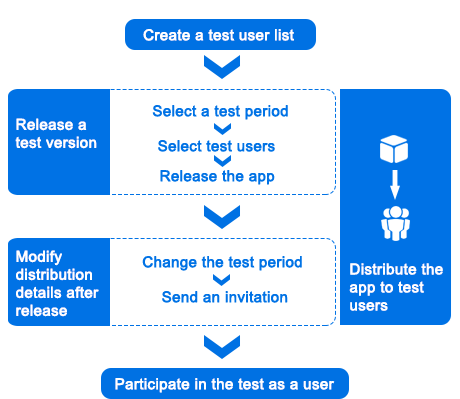
The Open Test is still on Beta state. To distribute your app for an Open Testing first you have to send an email to agconnect@huawei.com for application. Email type should in following format: [Open testing]–[Company name]–[Developer account ID (Huawei ID)]–[App ID]. After that Huawei operations personnel will reply to you within 1–3 workdays.
1.3 App Information — Filling out Necessities
Under Release app >> App information you need to fill out all mandatory boxes (*) in order to both release your app and initiate Open Testing.
- Firstly, you are required to select the platform of the compatible devices of your app.

Note for the Reader: Filled out the mandatory parts as you see fit but remember whence you initiate the Open Testing procedures and finally be able to Submit your version. You won’t be able to change the mentioned fields until your next update of the version. You’ll receive a warning box that says:

2. Releasing an Open Testing Version
Only after whence you filled the App Information under Release Apps tab in Huawei AppGallery Connect. You may release the Open Testing version in Huawei AppGallery Connect and select the list of “Trusted Test Users” to distribute your app under Version Information.
2.1 Version Information — Procedures
- Sign in to Huawei AppGallery Connect and select My Apps.
- Select the app for which you want to distribute Open Testing.
- On the Distribute tab on tab, second item from the start, go to Release app >> Version information. If you did get permission from agconnect@huawei.com you may see the Open testing section under Version information.
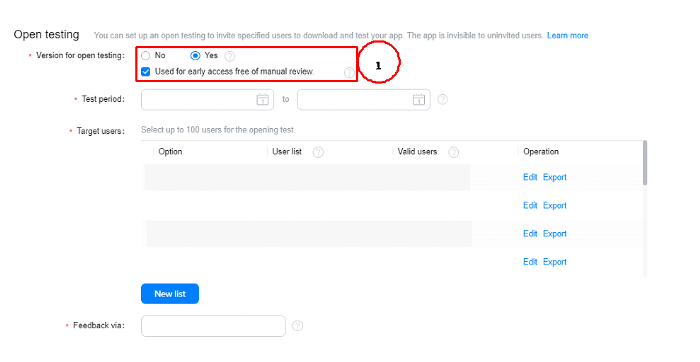
- In the Open Testing section (1), set Version for open Testing to Yes.
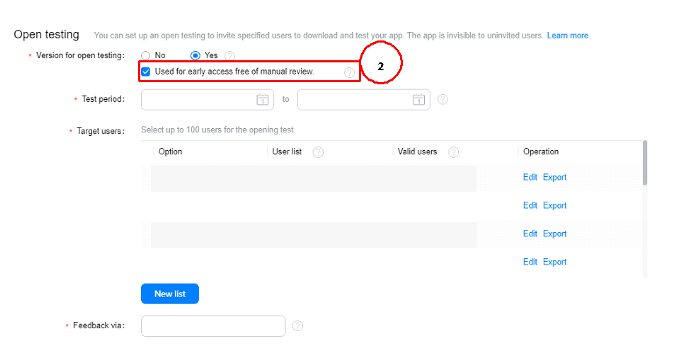
If the test is launched during development and review is not required, you may check Used for early access free of manual review (2). For the record, this mode allows a maximum of 100 test users. If not selected, manual review is required and you can invite up to 5000 test users.
Selecting a test period is mandatory. The pre-released version is valid within the desired time period. The maximum validity period is 90 days tops. After the Open Testing period ends. Test users won’t be able to find the app.

- Select a list of test users to whom the version is to be distributed. If you can’t find a list please refer to section 2.2. You may select up to 30 user lists. If you did check Used for early access free of manual review up to 100 test users can be selected in total. If not selected, manual review is required and you can invite up to 5000 test users.
- Also filling the Feedback via box is mandatory. The address will be sent to the test users by email or by SMS message. The test users can provide comments based on released Open Testing version through the entered address.

- Enter other not mentioned version release information and click Submit. If you can’t Submit your app for Open Testing. Please refer to section 1.2 and follow the steps as intently as possible.
2.2 Users and Permissions — Creating User List
You can create your own “Trusted Users List” from AppGallery Connect that has Huawei ID.
- From AppGallery Connect go to Users and permissions.
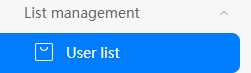
- Firstly, from the left drawer under the List management click User list.
- Secondly, select New and start adding Test user list for Open Testing. Storage location, by best practice, it must match the storage location that you choose for your app. Project Settings >> Convention >> Data storage location
- The List name is the name that you called under Open Testing that goes by the title Target users.
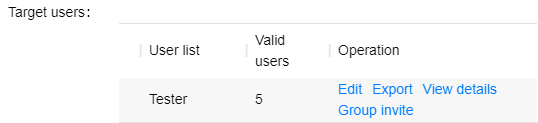
- From User Information you can either Manual input the users or use File import options that accept all file extensions (*.*)
- If users are valid or not by their Huawei ID you can observe it from the dashboard also.

Based on the planned distribution details of the Open Testing version, you may able to perform the following operations:
- Change your test period and Submit change.

- Click Edit in the Operation column of a User list and be able to add or delete users from the User list. After users are added successfully, click View details, you may see the newly added users then by clicking Invite next to that user. As worth mentioning adding a new user dost not require manual review.
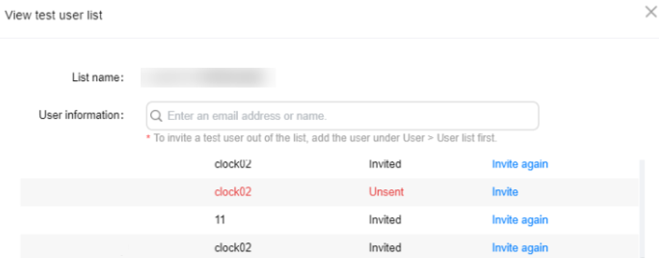
- It is also provided that by clicking Export next to a User list to download it in .csv format to a local path. Only the Valid user information will be exported.
- By clicking View details you may observe the invitation acceptance status of the User list you provided. That statuses include Unsent, Invited, Accepted, Installed, and Unsubscribed.
Unsent
- Description: The user doesn’t receive the invitation or SMS message.
- Operation Description: You may click Invite to send an email or SMS message to user.
Invited
Description: The user has received an invitation email or SMS message, but didn’t clicked the invitation link
Operation Description: You can click Invite again to send again an email or SMS message to remind the user
Accepted
Description: The user has clicked the invitation link and agreed to a privacy agreement, but has not yet installed the app of the Open Testing version.
Operation Description: You may have to wait for the user to install the app of the pen testing version
Installed
Description: The user has installed the app of the Open Testing version.
Operation Description: Wait for the user’s feedback.
Unsubscribed
Description: The user has unsubscribed from invitation mail.
Operation Description: The user account will be deleted from the User list, and no invitation email will be sent to the user.
- Clicking Group Invite next to the User list to send an invitation will send an invitation to all users on the list again.
3. Participating in an Open Testing Invitation as a User
3.1 Email
If an email address is added as a Huawei ID to the User list, the Open Testing invitation will be sent as an email address.
- The Participants will receive an email in the mailbox as shown in the following figure.
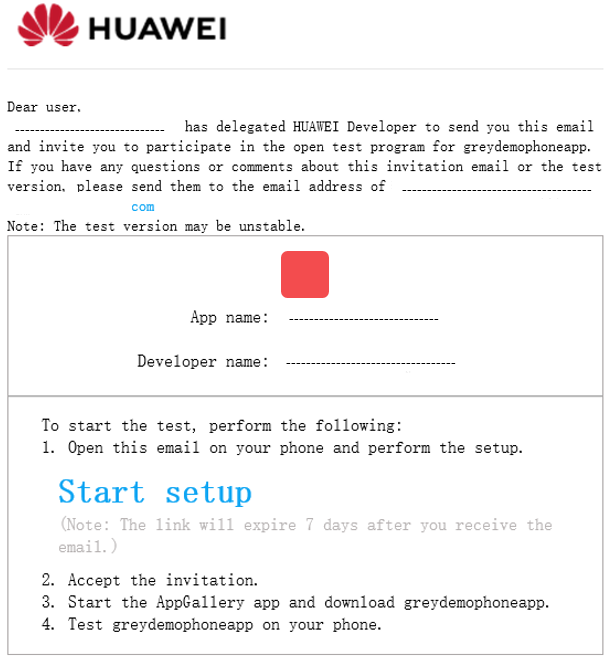
- Click Start setup in email. The Huawei ID sign-in page will be displayed after. Then you may use the email account that receives the invitation sign-in.
- After successful sign-in, read the rest of the participation description intently and then you may click Accept.
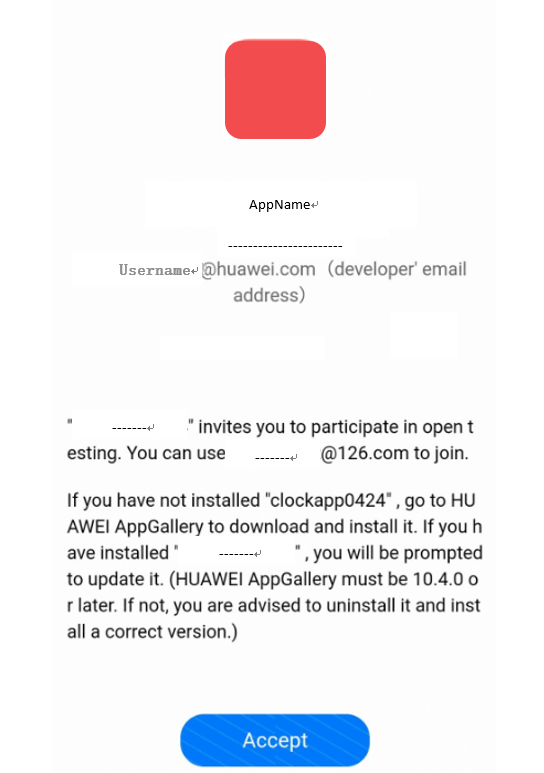
- The app details page in Huawei AppGallery is displayed. Finally, Open Testing is ready for your test user to download the test app on that page.
3.2 SMS
If a mobile number is added as Huawei ID to the user list, the Open Test invitation will be sent as an SMS
- Receive Open Test invitation as an SMS message.
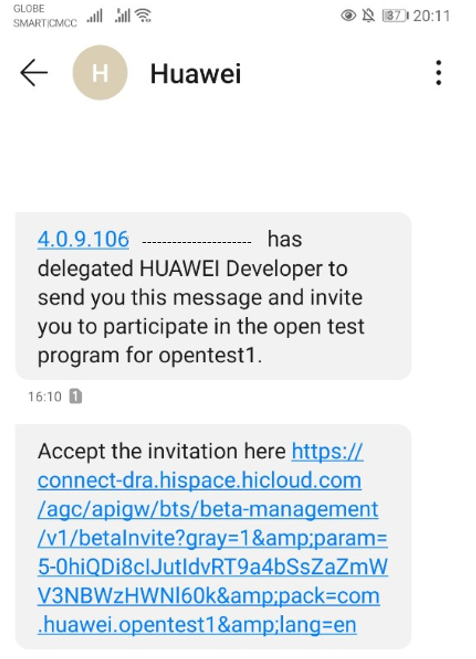
- Click the link in the SMS message. The Huawei ID sign-in page is going to be displayed after. You may use the mobile number that receives an invitation sign in.
- After successful sign-in, read the rest of the participation description intently and then you may click Accept.
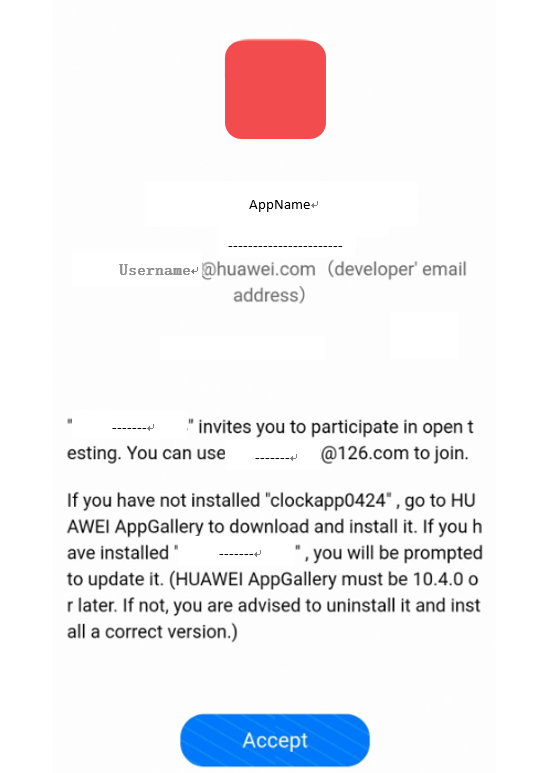
- The app details page in Huawei AppGallery is displayed. Finally, Open Test is ready for your test user to download the test app on that page.
4. Releasing an App to AppGallery
After the optimization period (1.3) based on your user feedback and completing the Open Test. You may finally release the official version of your app by updating the release version. For more details about releasing please refer to Updating an App. When your app is ready for publishing select No for Version for open testing in the Open Test area on the release information page.