
In this comparison article you will read about:
- Learn about simple transition animations.
- Learn about JUnit testing for URL.
- Learn how to record videos using the CameraX library.
- Learn to create a simple messaging system with Firebase Realtime Database. ( Bonus Content 😉 )
- Learn how to add video files to Firebase Storage, call their URLs to Realtime NoSQL of Firebase Database, and use those as our video sources.
- How to implement both Exo Player, Widevine, and HMS Video Kit, WisePlayer, and their pros and cons while building both of these projects by their flavor dimensions.
Please also note that the code language that supports this article will be on Kotlin and XML.
It is going to be a long ride so hold on and enjoy 😀
Global Setups for our application
What you will need for building this application is listed below:
Hardware Requirements
- A computer that can run Android Studio.
- An Android phone for debugging.
Software Requirements
- Android SDK package
- Android Studio 3.X
- API level of at least 23
- HMS Core (APK) 4.0.1.300 or later or later (Not needed for Exo Player 2.0)
To not hold too much space on our phone let’s start with adding necessary plugins to necessary builds.
plugins {
    id 'com.android.application'
    id 'kotlin-android'
    id 'kotlin-kapt'
    id 'kotlin-android-extensions'

    id 'com.huawei.agconnect'

    id 'com.google.gms.google-services'
}

if (getGradle().getStartParameter().getTaskRequests().toString().toLowerCase().contains("gms")) {
    apply plugin: 'com.google.gms.google-services'
} else {
    apply plugin: 'com.huawei.agconnect'
}
To compare them both let us create a flavor dimension first on our project. Separating GMS (Google Mobile Services) and HMS (Huawei Mobile Services) products.
flavorDimensions "version"
productFlavors {
    hms {
        dimension "version"
    }

    gms {
        dimension "version"
    }
}
After that add gms and hms as a directory in your src folder. The selected build variant will be highlighted as blue. Note that “java” and “res” must also be added by hand! And don’t worry I’ll show you how to fill them properly.
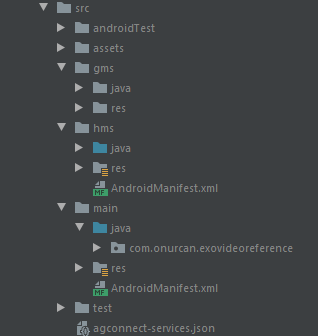
Binding build features that we’ll use a lot in this project.
buildFeatures {
    dataBinding true
    viewBinding = true
}
Let us separate our dependencies now that we have flavor product builds. Note separated implementations are starting with their prefixed names.
/* ExoPlayer */
def exoP= "2.12.1"

/* Slider Activity */
def roadkill = "2.1.0"

/* CameraX */
def camerax_version = "1.0.0-beta03"
def camerax_extensions = "1.0.0-alpha10"

/* BottomBar */
implementation 'nl.joery.animatedbottombar:library:1.0.9'

/* Firebase */
implementation platform('com.google.firebase:firebase-bom:26.1.0')
implementation 'com.google.firebase:firebase-analytics'
implementation 'com.google.firebase:firebase-database:19.5.1'
implementation 'com.google.firebase:firebase-storage:19.2.1'
implementation 'com.firebaseui:firebase-ui-auth:6.2.0'
implementation 'com.firebaseui:firebase-ui-database:6.2.0'
implementation 'com.firebaseui:firebase-ui-firestore:6.2.0'
implementation 'com.firebaseui:firebase-ui-storage:6.2.0'

/* Simple Video View */
implementation 'com.klinkerapps:simple_videoview:1.2.4'

/* Lottie */
implementation "com.airbnb.android:lottie: 3.4.0"

/*Sliding Activity*/
implementation "com.r0adkll:slidableactivity:$roadkill"

/* Exo */
gmsImplementation "com.google.android.exoplayer:exoplayer:$exoP"
gmsImplementation "com.google.android.exoplayer:exoplayer-core:$exoP"
gmsImplementation "com.google.android.exoplayer:exoplayer-dash:$exoP"
gmsImplementation "com.google.android.exoplayer:exoplayer-ui:$exoP"
gmsImplementation "com.google.android.exoplayer:exoplayer-hls:$exoP"
gmsImplementation "com.google.android.exoplayer:extension-okhttp:$exoP"

/* Huawei */
implementation 'com.huawei.agconnect:agconnect-core:1.4.1.300'
hmsImplementation 'com.huawei.agconnect:agconnect-auth:1.4.1.300'
hmsImplementation 'com.huawei.hms:hwid:5.0.3.302'
hmsImplementation 'com.huawei.hms:videokit-player:1.0.1.300'

// CameraX core library using the camera2 implementation
//noinspection GradleDependency
implementation "androidx.camera:camera-core:${camerax_version}"
//noinspection GradleDependency
implementation "androidx.camera:camera-camera2:${camerax_version}"
// If you want to additionally use the CameraX Lifecycle library
//noinspection GradleDependency
implementation "androidx.camera:camera-lifecycle:${camerax_version}"
// If you want to additionally use the CameraX View class
//noinspection GradleDependency
implementation "androidx.camera:camera-view:${camerax_extensions}"
// If you want to additionally use the CameraX Extensions library
//noinspection GradleDependency
implementation "androidx.camera:camera-extensions:${camerax_extensions}"

// Login
…
Adding Predefined Video URL’s
These URL’s will be our predefined tests that will be used. You may find them here.
<resources>
<string-array name="data_url">
<item>http://videoplay-mos-dra.dbankcdn.com/P_VT/video_injection/61/v3/519249A7370974110613784576/MP4Mix_H.264_1920x1080_6000_HEAAC1_PVC_NoCut.mp4?accountinfo=Qj3ukBa%2B5OssJ6UBs%2FNh3iJ24kpPHADlWrk80tR3gxSjRYb5YH0Gk7Vv6TMUZcd5Q%2FK%2BEJYB%2BKZvpCwiL007kA%3D%3D%3A20200720094445%3AUTC%2C%2C%2C20200720094445%2C%2C%2C-1%2C1%2C0%2C%2C%2C1%2C%2C%2C%2C1%2C%2C0%2C%2C%2C%2C%2C1%2CEND&GuardEncType=2&contentCode=M2020072015070339800030113000000&spVolumeId=MP2020072015070339800030113000000&server=videocontent-dra.himovie.hicloud.com&protocolType=1&formatPriority=504*%2C204*%2C2</item>
<item>http://commondatastorage.googleapis.com/gtv-videos-bucket/sample/BigBuckBunny.mp4</item>
<item>http://commondatastorage.googleapis.com/gtv-videos-bucket/sample/ElephantsDream.mp4</item>
<item>http://commondatastorage.googleapis.com/gtv-videos-bucket/sample/ForBiggerBlazes.mp4</item>
<item>http://commondatastorage.googleapis.com/gtv-videos-bucket/sample/ForBiggerEscapes.mp4</item>
<item>http://commondatastorage.googleapis.com/gtv-videos-bucket/sample/ForBiggerFun.mp4</item>
<item>http://commondatastorage.googleapis.com/gtv-videos-bucket/sample/ForBiggerJoyrides.mp4</item>
<item>http://commondatastorage.googleapis.com/gtv-videos-bucket/sample/ForBiggerMeltdowns.mp4</item>
<item>http://commondatastorage.googleapis.com/gtv-videos-bucket/sample/Sintel.mp4</item>
<item>http://commondatastorage.googleapis.com/gtv-videos-bucket/sample/SubaruOutbackOnStreetAndDirt.mp4</item>
<item>http://commondatastorage.googleapis.com/gtv-videos-bucket/sample/TearsOfSteel.mp4</item>
<item>http://commondatastorage.googleapis.com/gtv-videos-bucket/sample/VolkswagenGTIReview.mp4</item>
<item>http://commondatastorage.googleapis.com/gtv-videos-bucket/sample/WeAreGoingOnBullrun.mp4</item>
<item>http://commondatastorage.googleapis.com/gtv-videos-bucket/sample/WhatCarCanYouGetForAGrand.mp4</item>
</string-array>
<string-array name="data_name">
<item>Analytics - HMS Core</item>
<item>Big Buck Bunny</item>
<item>Elephant Dream</item>
<item>For Bigger Blazes</item>
<item>For Bigger Escape</item>
<item>For Bigger Fun</item>
<item>For Bigger Joyrides</item>
<item>For Bigger Meltdowns</item>
<item>Sintel</item>
<item>Subaru Outback On Street And Dirt</item>
<item>Tears of Steel</item>
<item>Volkswagen GTI Review</item>
<item>We Are Going On Bullrun</item>
<item>What care can you get for a grand?</item>
</string-array>
</resources>Defining Firebase constants
I am skipping all those setups a project part in Firebase part and moving directly to the part that interests you the most, my dear reader. You may refer to it here. If want to learn more about the Firebase setup. Since we are about to bind videos to each individual user there must be also login processes. I’ll also leave you, my dear reader.
Let us start with getting our logged-in users ID.
object AppUser {

    private var userId = ""

    fun setUserId(userId: String) {
        if (userId != "")
            this.userId = userId
        else
            this.userId = "dummy"
    }

    fun getUserId() = userId

}
Firebase Database Helper:
object FirebaseDbHelper {

    fun rootRef() : DatabaseReference {
        return FirebaseDatabase.getInstance().reference
    }

    fun getUser(userID : String) : DatabaseReference {
        return FirebaseDatabase.getInstance().reference.child("User").child(userID)
    }

    fun onDisconnect(db : DatabaseReference) : Task<Void> {
        return db.child("onlineStatus").onDisconnect().setValue(ServerValue.TIMESTAMP)
    }

    fun onConnect(db : DatabaseReference) : Task<Void> {
        return db.child("onlineStatus").setValue("true")
    }

    fun getUserInfo(userID : String) : DatabaseReference {
        return FirebaseDatabase.getInstance().reference.child("UserInfo").child(userID)
    }

    fun getVideoFeed(userID : String) : DatabaseReference {
        return FirebaseDatabase.getInstance().reference.child("UserFeed/Video/$userID")
    }

    fun getVideoFeedItem(userID: String, listId:String):DatabaseReference{
        return FirebaseDatabase.getInstance().reference.child("UserFeed/Video/$userID/$listId")
    }

    fun getShared(): DatabaseReference{
        return FirebaseDatabase.getInstance().reference.child("uploads/Shareable")
    }

    fun getShareItem(listId: String):DatabaseReference{
        return FirebaseDatabase.getInstance().reference.child("uploads/Shareable/$listId")
    }

    fun getUnSharedItem(listId: String): DatabaseReference{
        return FirebaseDatabase.getInstance().reference.child("uploads/UnShareable/$listId")
    }

    fun getPostMessageRootRef() : DatabaseReference {
        return FirebaseDatabase.getInstance().reference.child("PostMessage")
    }

    fun getPostMessageRef(listID : String) : DatabaseReference {
        return FirebaseDatabase.getInstance().reference.child("PostMessage/$listID")
    }

    fun getPostMessageUnderRef(postID : String, listID : String) : DatabaseReference {
        return FirebaseDatabase.getInstance().reference.child("PostMessageUnder/$postID/$listID/Message")
    }
}
Now that we have helper lets create our global constants:
class Constants {
    companion object {

        /* Firebase References */
        val fUserInfoDB = FirebaseDbHelper.getUserInfo(AppUser.getUserId())
        val fFeedRef = FirebaseDbHelper.getVideoFeed(AppUser.getUserId())
        val fSharedRef = FirebaseDbHelper.getShared()
/* Recording Video */
const val FILENAME = "yyyy-MM-dd-HH-mm-ss-SSS" //"yyyy-MM-dd-HH-mm-ss-SSS"
const val VIDEO_EXTENSION = ".mp4"
		var recPath = Environment.getExternalStorageDirectory().path + "/Pictures/ExoVideoReference"
fun getOutputDirectory(context: Context): File {
    val appContext = context.applicationContext
    val mediaDir = context.externalMediaDirs.firstOrNull()?.let {
        File(
            recPath
        ).apply { mkdirs() }
    }
    return if (mediaDir != null && mediaDir.exists()) mediaDir else appContext.filesDir
}
fun createFile(baseFolder: File, format: String, extension: String) =
    File(
        baseFolder, SimpleDateFormat(format, Locale.ROOT)
            .format(System.currentTimeMillis()) + extension
    )
}
}
Let’s create our Data classes to use:
object DataClass {
    data class ProfileVideoDataClass(
        val shareStat: String = "",
        val like: String = "",
        val timeDate: String = "",
        val timeMillis: String = "",
        val uploaderID: String = "",
        val videoUrl: String = "",
        val videoName:String = ""
    )

    data class UploadsShareableDataClass(
        val like: String = "",
        val timeDate: String = "",
        val timeMillis: String = "",
        val uploaderID: String = "",
        val videoUrl: String = "",
        val videoName:String = ""
    )

    data class PostMessageDataClass(
        val comment : String = "",
        val comment_lovely : String = "",
        val commenter_ID : String = "",
        val commenter_image : String = "",
        val commenter_name : String = "",
        val time : String = "",
        val type : String = ""
    )
}
Setting up Themes
<resources xmlns:tools="http://schemas.android.com/tools">
    <!-- Base application theme. -->
    <style name="Theme.ExoVideoReference" parent="Theme.MaterialComponents.DayNight.DarkActionBar">
        <item name="colorPrimary">@color/midnight</item>
        <item name="colorPrimaryVariant">@color/midnight</item>
        <item name="colorOnPrimary">@color/white</item>
        <item name="colorSecondary">@color/teal_200</item>
        <item name="colorSecondaryVariant">@color/teal_700</item>
        <item name="colorOnSecondary">@color/midnight</item>
        <item name="android:statusBarColor" tools:targetApi="l">?attr/colorPrimaryVariant</item>
    </style>

    <style name="Theme.ExoVideoReference.TransStatusBar" parent="Theme.MaterialComponents.DayNight.DarkActionBar">
        <item name="colorPrimary">@color/midnight</item>
        <item name="colorPrimaryVariant">@color/midnight</item>
        <item name="colorOnPrimary">@color/white</item>
        <item name="colorSecondary">@color/teal_200</item>
        <item name="colorSecondaryVariant">@color/teal_700</item>
        <item name="colorOnSecondary">@color/black</item>
        <item name="android:windowActivityTransitions">true</item>
        <item name="android:windowTranslucentStatus">true</item>
        <item name="android:windowActionBarOverlay">true</item>
        <item name="android:statusBarColor" tools:targetApi="l">?attr/colorPrimaryVariant</item>
    </style>

    <style name="BlurTheme" parent="android:style/Theme.Translucent">
        <item name="android:windowNoTitle">true</item>
        <item name="android:windowContentOverlay">@null</item>
        <item name="android:backgroundDimEnabled">true</item>
        <item name="android:background">@color/transparent</item>

<style name="DialogSlide">
        <item name="android:windowEnterAnimation">@anim/slide_in_up</item>
        <item name="android:windowExitAnimation">@anim/slide_out_down</item>
    </style>

    <style name="Popup_Animation">
        <item name="android:windowEnterAnimation">@anim/fade_in</item>
        <item name="android:windowExitAnimation">@anim/fade_out</item>
    </style>

    <style name="ActionBar" parent="ThemeOverlay.AppCompat.ActionBar">
        <item name="android:displayOptions">homeAsUp</item>
    </style>

    <style name="BottomBarItemText">
        <item name="android:textAllCaps">false</item>
        <item name="android:fontFamily">@font/bicubik</item>
        <item name="android:textSize">16sp</item>
        <item name="android:textStyle">bold</item>
    </style>

    <style name="mSeekBar" parent="Widget.AppCompat.SeekBar">
        <item name="android:progressBackgroundTint">#f4511e</item>
        <item name="android:progressTint">#EF484B</item>
        <item name="colorControlNormal">#827717</item>
        <item name="thumbTint">#FFD600</item>
        <item name="thumbColor">#FFD600</item>
        <item name="android:colorControlActivated">#FF6D00</item>
    </style>

</resources>
Setting Animations
Now we will define some animations to pop popup windows, implement some slide animations for our dialog windows and turn the back or front of our cards.
Fade-in animation:
<set xmlns:android="http://schemas.android.com/apk/res/android">
    <alpha
        android:fromAlpha="0.0"
        android:toAlpha="1.0"
        android:duration="@android:integer/config_mediumAnimTime"/>
</set>
Fade-out animation:
<set xmlns:android="http://schemas.android.com/apk/res/android">
    <alpha
        android:fromAlpha="1.0"
        android:toAlpha="0.0"
        android:duration="@android:integer/config_mediumAnimTime"/>
</set>
Slide up animation:
<translate xmlns:android="http://schemas.android.com/apk/res/android"
    android:fromYDelta="100%p"
    android:toYDelta="0"
    android:duration="@android:integer/config_mediumAnimTime"/>
Slide down animation:
<translate xmlns:android="http://schemas.android.com/apk/res/android"
    android:fromYDelta="0"
    android:toYDelta="100%p"
    android:duration="@android:integer/config_mediumAnimTime"/>
Back animation:
<set xmlns:android="http://schemas.android.com/apk/res/android">
    <objectAnimator
        android:valueFrom="1.0"
        android:valueTo="0.0"
        android:propertyName="alpha"
        android:duration="0"/>
    <objectAnimator
        android:valueFrom="-180"
        android:valueTo="0"
        android:propertyName="rotationY"
        android:repeatMode="reverse"
        android:duration="1000"/>
    <objectAnimator
        android:valueFrom="0.0"
        android:valueTo="1.0"
        android:propertyName="alpha"
        android:startOffset="500"
        android:duration="0"/>
</set>
Front animation:
<set xmlns:android="http://schemas.android.com/apk/res/android">
    <objectAnimator
        android:duration="1000"
        android:propertyName="rotationY"
        android:valueFrom="0"
        android:valueTo="180" />
    <objectAnimator
        android:duration="1"
        android:propertyName="alpha"
        android:startOffset="500"
        android:valueFrom="1.0"
        android:valueTo="0.0" />
</set>
Animation Helpers to Rotate any View
We will use it to turn any view from -x to +x to create an effect like we’re actually turning any defined view.
object FlipCard {

    fun flipFrontAnimator(
        frontAnim: AnimatorSet,
        frontView: View,
        backAnim: AnimatorSet,
        backView: View
    ) {
        frontAnim.setTarget(frontView)
        backAnim.setTarget(backAnim)
        frontAnim.start()
        backAnim.start()
        frontView.visibility = View.GONE
        backView.visibility = View.VISIBLE
    }

    fun flipBackAnimator(
        frontAnim: AnimatorSet,
        frontView: View,
        backAnim: AnimatorSet,
        backView: View
    ) {
        frontAnim.setTarget(backView)
        backAnim.setTarget(frontView)
        frontAnim.start()
        backAnim.start()
        frontView.visibility = View.VISIBLE
        backView.visibility = View.GONE
    }
}
Custom URL Test Implementation with JUnit
We need a test based controller to help our users to enter a valid URL address for that let’s begin by creating a new Url Validator class:
class UrlValidatorHelper : TextWatcher {

    internal var isValid = false

    override fun beforeTextChanged(s: CharSequence?, start: Int, count: Int, after: Int) {}

    override fun onTextChanged(s: CharSequence?, start: Int, before: Int, count: Int) {}

    override fun afterTextChanged(s: Editable?) {
        isValid = isValidUrl(s)
    }

    companion object {

        fun isValidUrl(url: CharSequence?): Boolean {
            return url!=null && URLUtil.isValidUrl(url.trim().toString()) && Patterns.WEB_URL.matcher(url).matches()
        }
    }
}
Now that we have URL helper lets create our test classes under test>>java>>”package_name”>>UrlValidatorTest:
class UrlValidatorTest {

    @Test
    fun urlValidator_InvalidCertificate_RunsFalse(){
        assertFalse(UrlValidatorHelper.isValidUrl("www.youtube.com/watch?v=Yr8xDSPjII8&list=RDMMYr8xDSPjII8&start_radio=1"))
    }

    @Test
    fun urlValidator_InvalidIdentifier_RunsFalse(){
        assertFalse(UrlValidatorHelper.isValidUrl("https://youtube.com/watch?v=Yr8xDSPjII8&list=RDMMYr8xDSPjII8&start_radio=1"))
    }

    @Test
    fun urlValidator_InvalidDomain_RunsFalse(){
        assertFalse(UrlValidatorHelper.isValidUrl("https://www.com/watch?v=Yr8xDSPjII8&list=RDMMYr8xDSPjII8&start_radio=1"))
    }

    @Test
    fun urlValidator_InvalidExtension_RunsFalse(){
        assertFalse(UrlValidatorHelper.isValidUrl("https://www.youtube/watch?v=Yr8xDSPjII8&list=RDMMYr8xDSPjII8&start_radio=1"))
    }

    @Test
    fun urlValidator_EmptyUrl_RunsFalse(){
        assertFalse(UrlValidatorHelper.isValidUrl(""))
    }

    @Test
    fun urlValidator_NullUrl_RunsFalse(){
        assertFalse(UrlValidatorHelper.isValidUrl(null))
    }
}